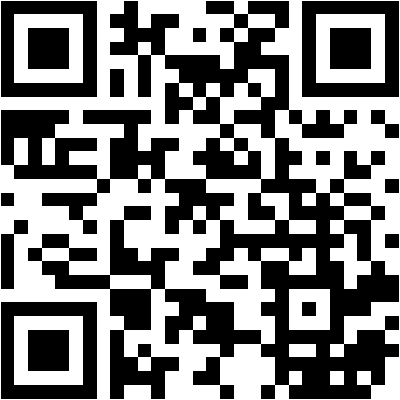
A QR code carries data
A QR code contains the supplied string, such as a URL or Wi-Fi connection settings. It does not make a link safe, keep a site running or hide a network password. Anyone with the image can read the encoded payload using a suitable scanner.
Check the finished image
Generate the code and download the PNG. Open that downloaded file and scan it with another device. For a link, verify the protocol and domain; for Wi-Fi, check the network name, password and security type. Do not test only the page preview: resizing or printing may change readability.
After publishing
Keep a clear margin and adequate contrast. Test the actual printed result under expected lighting. Changing a destination URL or Wi-Fi password does not update an existing image: generate a new code, or manage redirects on a domain you control.
Questions and answers
Does a QR code hide my Wi-Fi password?
No. The password can be extracted from the QR image.
Will the image update when the link changes?
No. The existing image retains its original payload.